
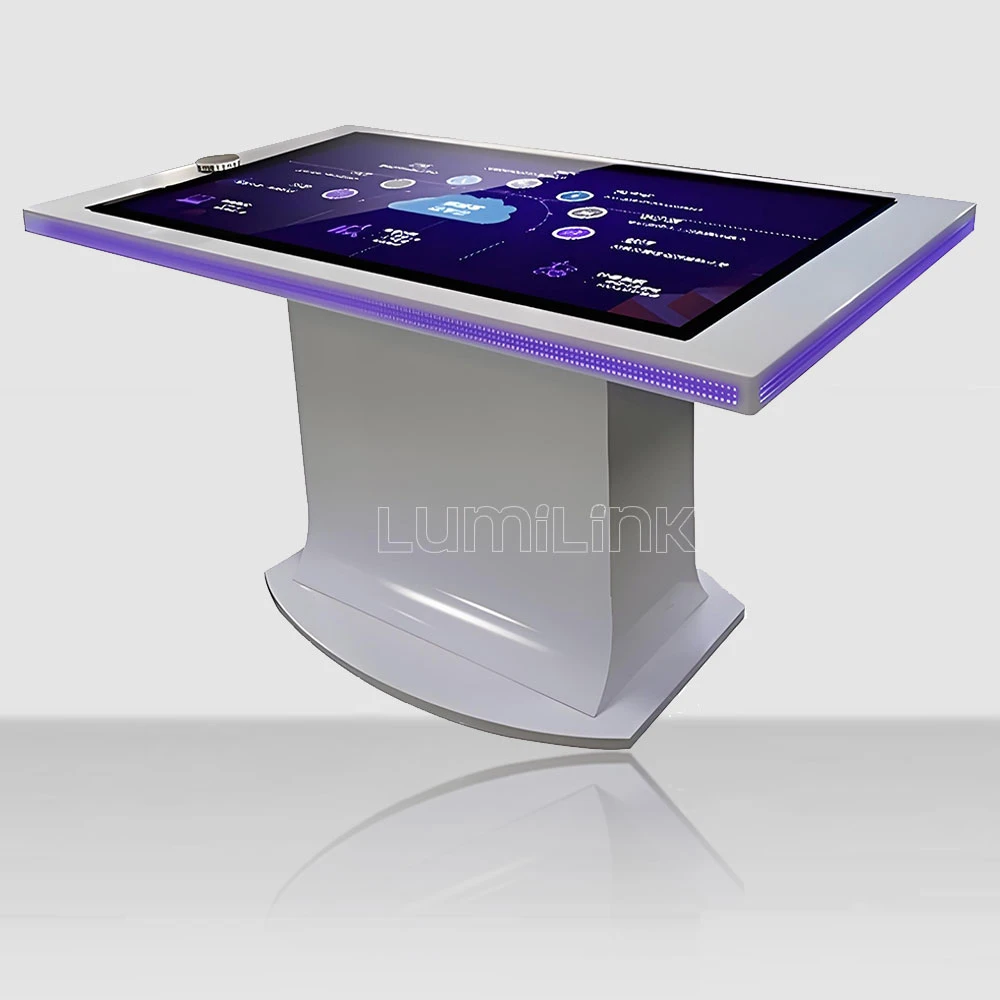

A preschool director in Texas had $8,000 left in her technology budget and needed interactive tables for three classrooms. She found options ranging from $600 to $4,500 per table and could not understand why a "kids' touch table" could vary so wildly in price. Like many educators and programme coordinators, she was looking for a cheap interactive touch screen table for kids and discovered that "cheap" and "good value" are not the same thing.
This article is for buyers who have a real budget constraint — schools, day-care centres, community programmes, and parents who want an interactive learning surface without overspending. We will not recommend the absolute cheapest option on the market, because those options typically fail within months of deployment. Instead, we will help you identify where to save money and where to spend it, so you get the best value per dollar within your budget.
What "Cheap" Really Means in Touch Tables
The word "cheap" does a lot of heavy lifting in product searches. In the touch table market, it can mean any of four very different things: low initial purchase price, low total cost of ownership, low quality, or good value. These are not equivalent. A table that costs $600 today but needs replacement in 18 months is more expensive than a $1,500 table that lasts five years. Let us separate these concepts.
Low initial price is what most people search for. Tables in the $600 to $1,200 range exist, typically sold through Amazon or AliExpress. They use infrared touch technology, consumer-grade displays, Android-based computing, and lightweight plastic or thin metal enclosures. They work — for a while. The touch response is slower, the display is dimmer, and the build quality will not survive daily classroom use for more than 18-24 months.
Good value is what you should actually be looking for. A value-optimised table costs more upfront ($1,500 to $2,800) but uses commercial-grade components that last 4-5 years in a classroom environment. The touch technology is better (PCAP instead of infrared), the display is brighter and more durable, and the enclosure can withstand the bumps, spills, and enthusiastic interactions that are inevitable when children are the primary users.
Low total cost of ownership combines the purchase price with maintenance, replacement, and downtime costs. Over a five-year period, a $1,800 value-optimised table that requires zero maintenance will have cost you $1,800. A $800 cheap table that needs replacement after two years will have cost you $1,600 (two tables) plus the cost of downtime during the replacement period. The "cheap" option is only cheaper if you ignore the second purchase and the disruption it causes.
Where to Save Money (and Where Not To)
If your budget is tight — and most education budgets are — you need to make strategic trade-offs. Here is our guidance on which features you can safely downgrade to save money, and which ones you absolutely should not.
Safe to Save On
Screen size. For kids' applications, a 32-inch table is often sufficient where a 43-inch would be overkill. Children sit closer to the surface and interact with larger touch targets, so the extra screen real estate is less critical than it is for adult-oriented applications. Dropping from 43 to 32 inches can save $400 to $800.
Computing power. Most children's educational software — matching games, colouring apps, story interactives, basic quizzes — does not require significant computing resources. An Intel Celeron or even an ARM-based Android system is perfectly adequate for these workloads. You do not need a Core i7 for a preschool learning table. Downgrading the processor can save $300 to $500.
Touch points. For a table used by 2-4 children simultaneously, 10 touch points is sufficient. You do not need 40-point touch for a kids' table — that specification exists for large interactive surfaces used by 8+ adults. Reducing touch point requirements can save $100 to $200.
Storage capacity. Educational apps and content typically require 32-64GB of storage. A 128GB SSD is more than enough. Do not pay for 512GB or 1TB storage that will never be used. Saving on storage capacity saves $50 to $150.
Never Compromise On
Glass durability. This is the single most important specification for a kids' touch table. Children will lean on the surface, press hard, occasionally drop objects on it, and in rare cases, stand on it. The glass must be tempered, at least 5mm thick, and rated for impact. Acrylic or plastic surfaces will scratch within weeks and crack under pressure. This is not a place to save money — a cracked surface means the entire table is unusable and potentially dangerous.
Enclosure rigidity. The table will be bumped, pushed, and possibly tipped over. A steel enclosure with a wide, stable base is essential. Lightweight plastic or aluminium enclosures may look fine in a product photo, but they will not survive a classroom environment. Look for enclosures rated for at least 50kg of top-loading weight.
Liquid resistance. Kids spill things. The table should have sealed edges around the touch surface and sealed cable entry points. Ask the supplier specifically about spill resistance — if they cannot answer confidently, the table is not designed for children's environments.
Electrical safety. The table must have appropriate safety certifications for your region (CE for Europe, FCC/UL for North America, CCC for China). This is not optional — uncertified electrical products in environments with children are a liability and safety hazard.
The Sweet Spot: Value-Optimised Kids' Touch Tables
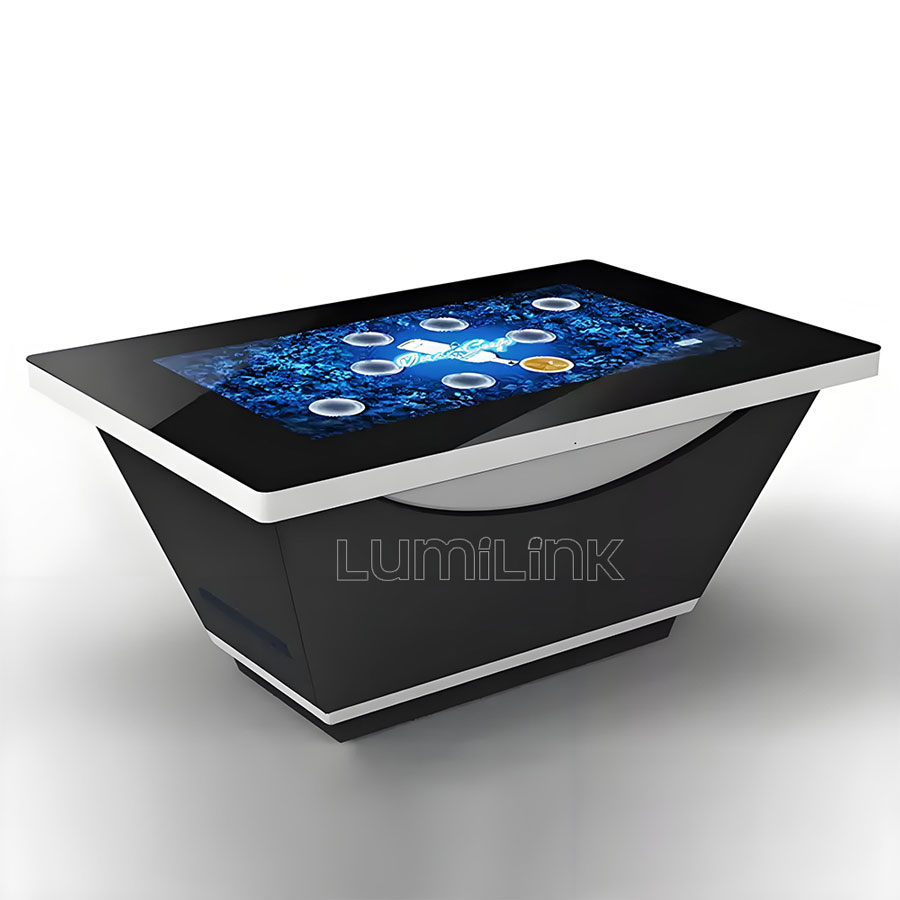
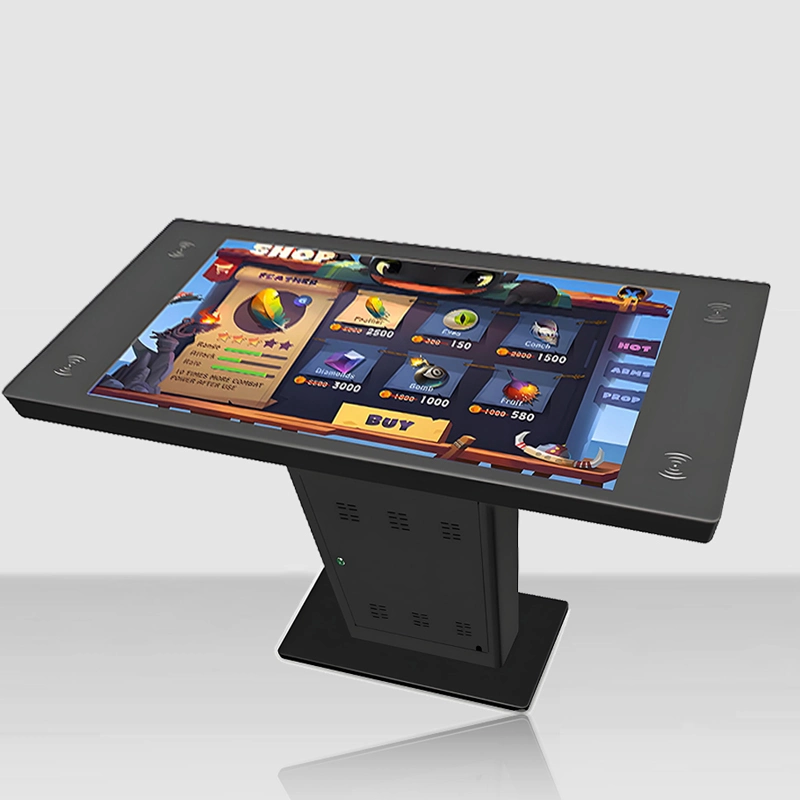
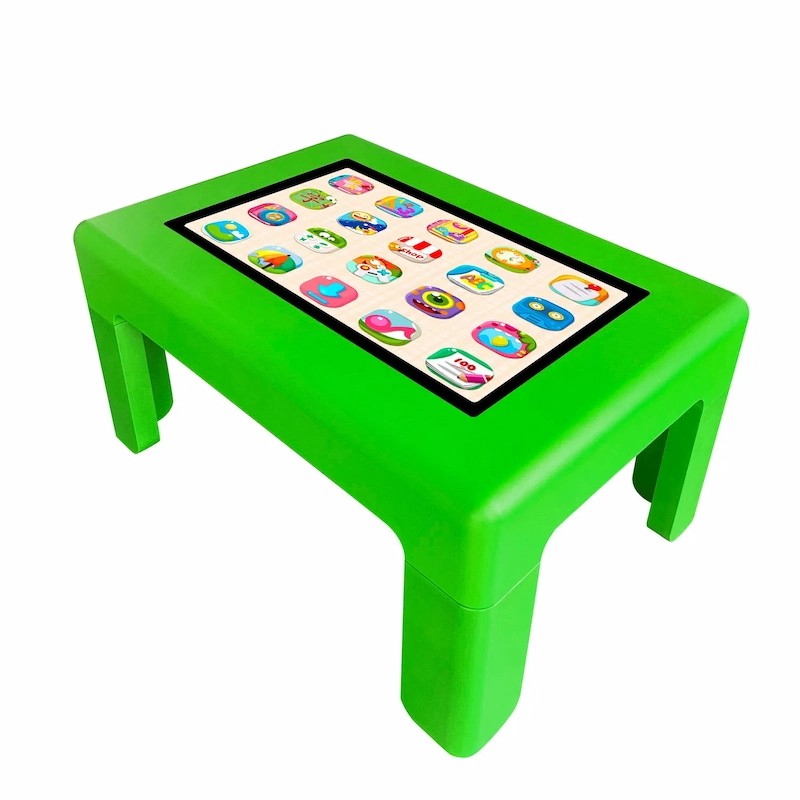
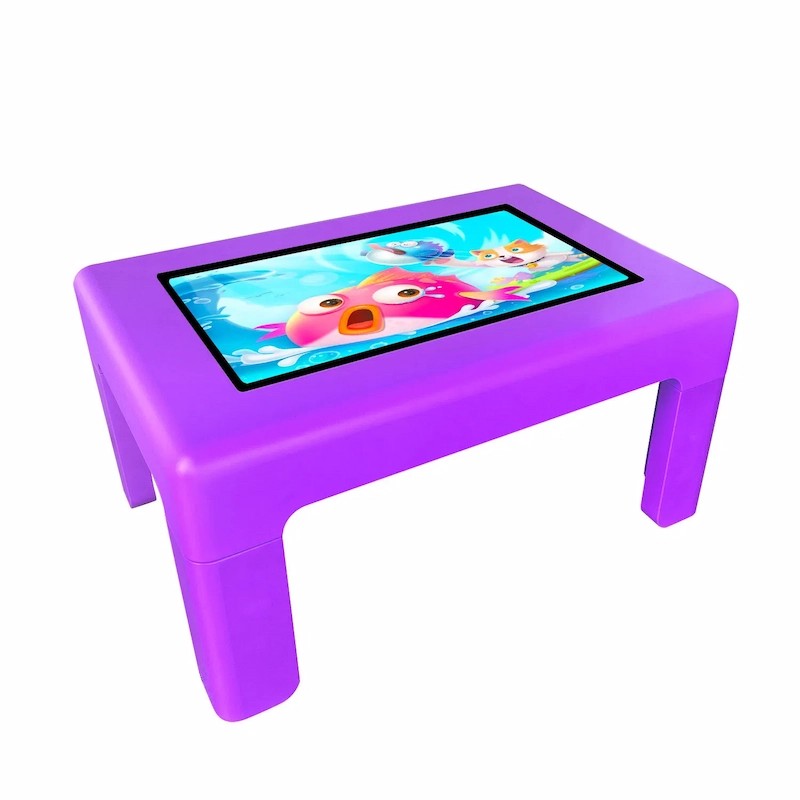
Based on our experience supplying touch tables to schools, day-care centres, and children's museums, the sweet spot for a budget-conscious kids' touch table is a 32-inch PCAP touch surface, tempered 5mm glass, a steel enclosure with spill-resistant seals, and a modest computing platform (Intel Celeron or Android-based, 4-8GB RAM, 128GB storage). This configuration typically costs between $1,500 and $2,500 depending on the manufacturer and order volume.
At this price point, you get a table that will survive 4-5 years of daily classroom use, with touch performance that is smooth and responsive, a display that is bright enough for a well-lit classroom, and an enclosure that will not tip over when a four-year-old leans on the edge. You sacrifice screen size, computing power, and premium features (like 4K resolution or dedicated graphics), but you keep the things that matter for a children's environment: durability, safety, and touch quality.
Lumilink offers a 32-inch configuration specifically designed for educational environments. It uses the same PCAP touch technology and tempered glass as our commercial-grade 43-inch tables, but with a smaller display and a lighter computing platform to bring the price into the budget range that schools and community programmes can afford. Request a quote with your budget and quantity requirements, and our team will recommend the most cost-effective configuration that meets your durability and safety needs.
Software Considerations for Budget Buyers
Hardware is only half the equation. The software that runs on the table determines whether children actually engage with it. Many budget buyers focus entirely on the hardware and forget about software until the table arrives — at which point they discover they have a touch surface with nothing to touch.
If you are buying an Android-based table, the Google Play Store offers a wide selection of free and low-cost educational apps. Look for apps designed for multi-touch group use, not single-player tablet apps. Good starting points include Toca Boca games, PBS Kids apps, and interactive storybooks. Budget $50 to $200 for app purchases across multiple tables.
If you are buying a Windows-based table, the software ecosystem is broader but more expensive. Educational software suites designed for interactive touch tables (such as Snowflake MultiTeach or YCt Show) cost $200 to $800 per license. However, many free alternatives exist — Microsoft Fresh Paint for drawing, Khan Academy Kids for learning content, and Scratch for basic coding activities. Start with free options and upgrade only if you find a gap in your curriculum that paid software fills.
One often-overlooked software consideration is content management. In a classroom with multiple tables, you need a way to push content updates, schedule app availability, and lock down settings remotely. Windows-based tables support standard MDM (Mobile Device Management) tools. Android-based tables support Google's Android Management API. Factor this into your software planning — it is not expensive, but it needs to be set up from day one.
Making the Final Decision
When you are comparing options, create a simple spreadsheet with three columns: initial price, expected lifespan (in years), and safety certifications. Calculate the annual cost by dividing price by lifespan. A $1,800 table with a 5-year lifespan costs $360 per year. A $800 table with a 2-year lifespan costs $400 per year — and that is before factoring in the disruption of replacing it.
Also consider the intangible costs. A table that breaks mid-semester disrupts lesson plans and disappoints children. A table with poor touch response frustrates users and discourages engagement. A table without safety certifications creates liability. These costs do not show up in a price comparison, but they are real and they matter — especially in environments with children.
The bottom line: a cheap interactive touch screen table for kids does not mean the cheapest table on the market. It means the table that delivers the most learning value per dollar over its useful life. By investing in durability and safety while saving on computing power and screen size, you can stay within budget without compromising on the things that matter. Contact Lumilink to discuss your specific requirements, and we will help you find the configuration that fits both your classroom and your budget.