
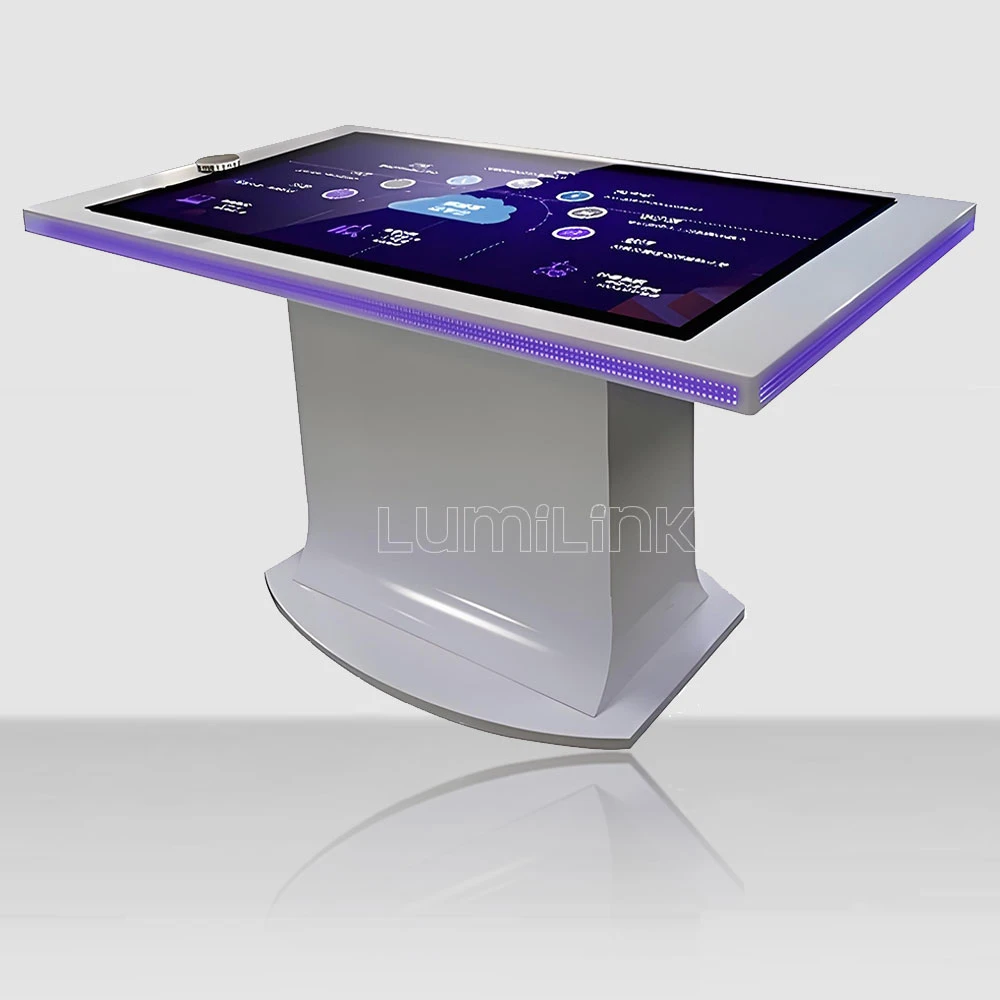

"We already have a 75-inch display on the wall and a conferencing phone on the table. Why would we need a touch surface?" That question has been posed to us by IT directors, facilities managers, and CIOs more times than we can count. The answer is simple: a wall display is for watching, and a touch table is for doing. The multi touch table for corporate boardrooms fills a gap that no projector, TV, or laptop can — it turns meetings from presentations into collaborations.
But there is a lot of confusion about what these tables actually do, whether they justify the cost, and how they fit into existing AV infrastructure. This article addresses the five most common myths we hear from corporate buyers, with straight answers based on real deployment data.
Myth 1: Touch Tables Are Just Expensive iPads
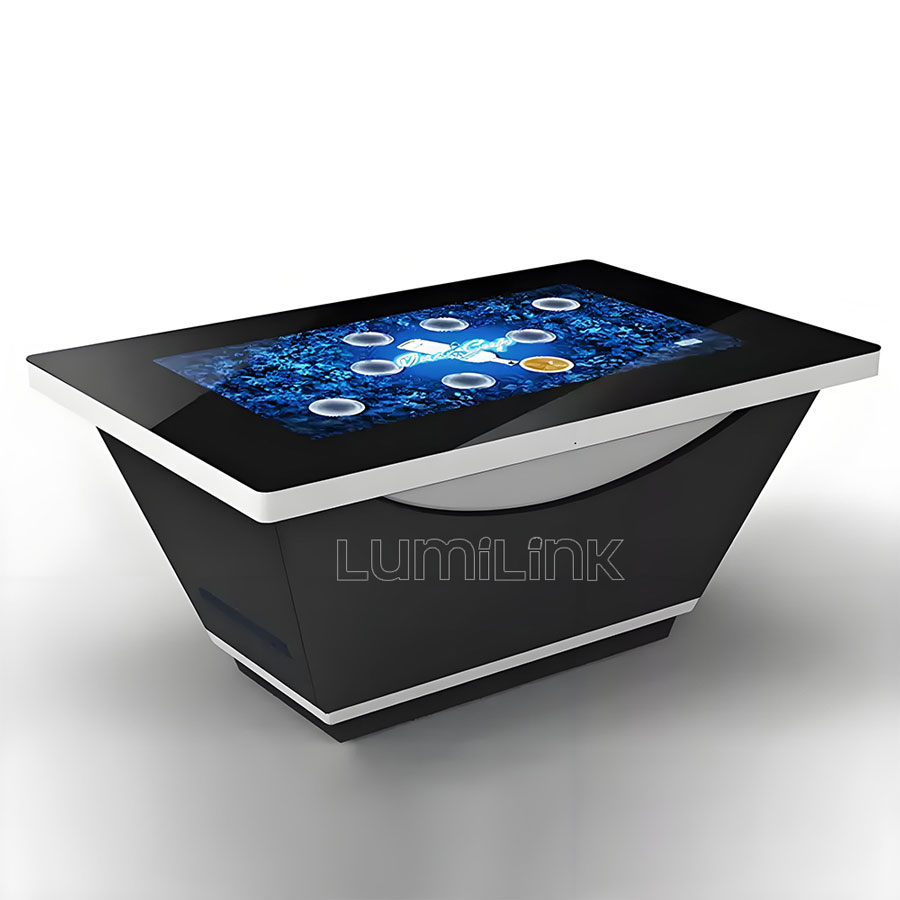
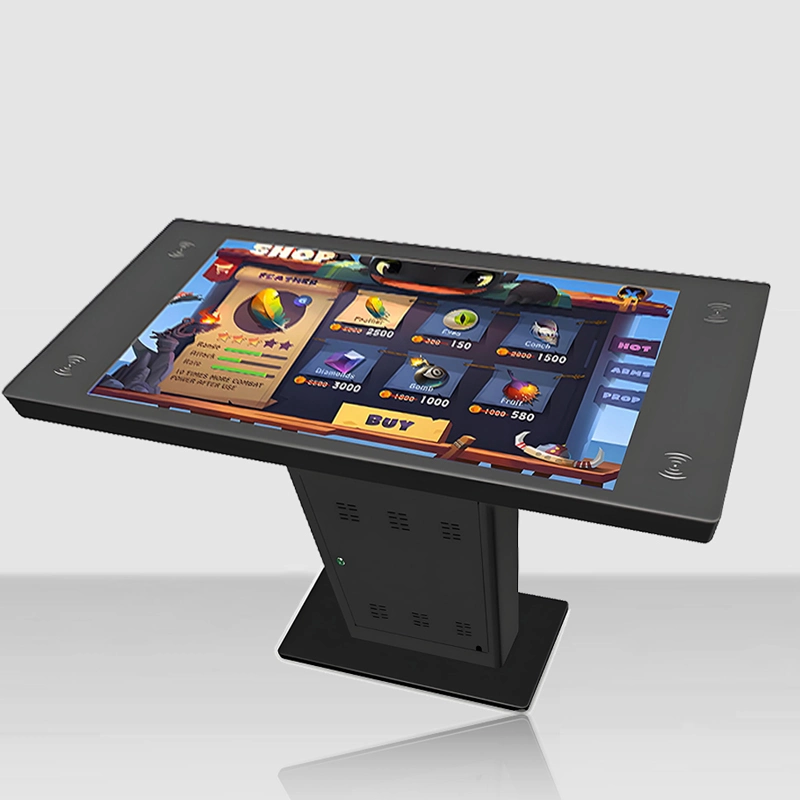
This is the most frequent misconception, and it could not be further from the truth. A consumer tablet is a personal device designed for one user at a time, with a small screen, limited computing power, and no support for multi-user interaction. A multi touch table for corporate boardrooms is a commercial-grade collaboration platform built for group use, with a 43 to 55-inch multi-touch surface, a built-in industrial PC, and integration capabilities that connect directly to your enterprise software stack.
Consider a typical boardroom scenario: six department heads reviewing a quarterly report. On a wall display, one person drives the presentation while five others watch. On a touch table, all six can simultaneously annotate different sections, pull up supporting data, and push their findings to a shared workspace. The dynamic shifts from passive listening to active participation — and that is the fundamental difference.
The hardware gap is equally significant. Commercial touch tables use PCAP technology with up to 40 simultaneous touch points, sub-10ms latency, and tempered glass rated for daily use. The computing hardware — typically an Intel Core i5 or i7 with 8 to 16GB of RAM and SSD storage — can run full Windows applications, video conferencing software, and real-time data visualisation tools without breaking a sweat. No tablet on the market can match this.
Myth 2: Our Existing AV Setup Already Covers That
Most corporate boardrooms have a standard AV stack: a large wall-mounted display, a ceiling projector, a video conferencing codec, and a table-mounted control panel. This setup is excellent for one-to-many presentations — a speaker showing slides to an audience. But it falls short when the meeting shifts to collaborative work, where multiple participants need to interact with content simultaneously.
Think about the last time your team tried to review a complex document together. Someone probably shared their screen, and everyone else watched passively while one person scrolled. If someone wanted to point something out, they had to ask the presenter to navigate there. Comments were verbal, annotations were lost, and by the end of the meeting, nobody had a clear record of what was discussed.
A multi touch table for corporate boardrooms eliminates this bottleneck. Multiple participants can interact with the same document at the same time — highlighting, annotating, and rearranging content on a shared surface that everyone can see and reach. The session is saved automatically, capturing every annotation and decision point. When the meeting ends, a complete record goes to every participant's inbox. No more lost sticky notes or forgotten action items.
Myth 3: The ROI Does Not Justify the Cost
This myth persists because procurement teams compare the upfront cost of a touch table ($4,000 to $9,000 depending on configuration) to the cost of doing nothing. But doing nothing has a cost too — it just does not show up as a line item on a purchase order.
Consider the hidden costs of inefficient meetings. A one-hour boardroom meeting with six executives earning an average of $80/hour each costs $480 in labour. If poor collaboration tools add even 15 minutes of wasted time per meeting — waiting for screen sharing to connect, struggling with document versions, repeating points that were lost — that is $120 per meeting in productivity loss. Across 200 meetings per year, the waste exceeds $24,000 annually. A touch table that costs $6,000 pays for itself in three months on this metric alone.
Beyond meeting efficiency, there are qualitative returns that translate to real business value. Better collaboration produces better decisions. Faster document review cycles shorten time-to-market. Digital annotation eliminates printing costs. Remote participants feel more engaged when they can interact with the same surface as in-room attendees. These benefits compound over the five to seven year lifecycle of a commercial touch table.
| Cost Factor | Without Touch Table | With Touch Table |
|---|---|---|
| Meeting wasted time | 15-20 min per meeting | 5-8 min per meeting |
| Printing costs | $50-200/month for handouts | Near zero — digital annotation |
| Meeting documentation | Manual notes, often incomplete | Automatic session capture and distribution |
| Remote participation quality | Watch-only via screen share | Full interactive participation |
| Hardware lifecycle | Replace projector every 3-4 years | 5-7 years commercial-grade |
Myth 4: It Will Be Too Complex for Our Staff to Use
If your team can use a smartphone, they can use a touch table. The interface is the same — tap, swipe, pinch, drag — just on a larger surface. The learning curve for basic operation is measured in minutes, not days. Lumilink tables run Windows, meaning your staff interacts with familiar applications like Microsoft Whiteboard, PowerPoint, and Zoom, not proprietary software that requires specialised training.
The real training challenge is not technical — it is behavioural. Staff who are accustomed to traditional meeting formats need guidance on how to integrate the touch table into their workflow. This is why Lumilink provides on-site training as part of every corporate deployment. We work with your teams to develop meeting templates, configure collaboration software, and establish best practices for common scenarios like strategy reviews, design workshops, and project status meetings.
Within two to three weeks of regular use, most teams report that the touch table becomes second nature. They stop thinking about it as technology and start treating it as a natural part of the meeting space — like a whiteboard or a conference phone. The key is consistent use and clear ownership. Assign a meeting room manager who ensures the table is powered on, software is updated, and the room is ready for collaboration at the start of each day.
Myth 5: Security Will Be a Nightmare
Security is a legitimate concern, and it is one we take seriously. But the reality is that a commercial touch table running Windows 11 Pro with proper enterprise security policies is no more vulnerable than the laptops your employees bring into the same room. In fact, a locked-down touch table with no personal email, no web browsing, and centrally managed software is arguably more secure than the average corporate laptop.
Lumilink works with your IT security team to configure the table according to your enterprise policies. This includes domain joining, group policy enforcement, endpoint protection installation, network segmentation, and automatic security update scheduling. For organisations with strict compliance requirements — HIPAA, SOC 2, ISO 27001 — the table can be configured to meet those standards. All data processed on the table stays within your network unless explicitly configured otherwise.
The touch table should be treated like any other networked device in your boardroom: inventoried, monitored, and maintained. With proper configuration, it adds negligible risk to your security posture while delivering significant collaboration benefits.
For organisations concerned about data persistence on shared devices, Lumilink tables can be configured with automatic session clearing — all annotations, downloaded files, and browsing history are wiped after each meeting. Disk encryption (BitLocker) ensures that even if the SSD is physically removed, the data remains inaccessible. And for high-security environments, the table can operate in an air-gapped mode with no network connectivity, synchronising content only through a physically secured USB drive.
Integration with Your Existing Boardroom Technology
A common concern is whether a multi touch table for corporate boardrooms will conflict with existing AV equipment. The short answer: it complements, not competes. The touch table connects to your room's video conferencing system, allowing remote participants to see and interact with the shared surface. Content created on the table can be mirrored to the wall display for larger audiences. The table's built-in PC can join your network, access shared drives, and run the same software your team uses on their laptops.
Typical integration points include: connecting the table to your room's AV matrix switcher for display mirroring, integrating with Microsoft Teams or Zoom Rooms for hybrid meetings, linking to your document management system for direct file access, and connecting to your room booking system so the table powers on automatically when a meeting starts. Lumilink's deployment team handles all of this configuration during installation, working alongside your AV integrator and IT department.
Choosing the Right Configuration for Your Boardroom
Boardroom size and meeting style determine the ideal configuration. For small executive boardrooms (8 to 10 seats), a 43-inch table provides ample interactive surface without dominating the room. For larger boardrooms (12 to 20 seats), a 55-inch table ensures everyone can reach the screen comfortably. Consider the table's height — standard meeting table height (72 to 75cm) is ideal for seated use, while adjustable-height models accommodate both seated and standing collaboration.
Computing specifications should match your software requirements. If the table will primarily run Microsoft Office applications and web-based tools, an Intel Core i5 with 8GB of RAM is sufficient. For data-intensive applications — real-time analytics, 3D visualisation, or CAD software — upgrade to a Core i7 with 16GB of RAM and a dedicated GPU. Lumilink offers configurable options so you pay only for the computing power you actually need.
Do not overlook the importance of connectivity. The table should integrate seamlessly with your existing boardroom infrastructure: HDMI or DisplayPort output for mirroring to the wall display, USB-C for laptop connection, Ethernet for network access, and Wi-Fi for wireless casting. Bluetooth support enables wireless keyboards, presentation clickers, and audio devices. Lumilink tables include a comprehensive port selection, and we can add custom I/O options — such as card readers or biometric scanners — for specialised use cases.
Ready to Transform Your Boardroom?
The myths surrounding the multi touch table for corporate boardrooms are understandable — it is a new category of technology that does not fit neatly into existing AV budgets. But the organisations that have deployed touch tables in their boardrooms are not looking back. They are running shorter, more productive meetings, capturing better documentation, and enabling collaboration styles that were simply not possible before.
Lumilink has deployed interactive touch tables in corporate boardrooms across industries, from financial services to engineering firms to technology companies. Request a Custom Quote to receive a tailored proposal for your boardroom, including hardware specifications, integration plan, and pricing.